

WordPress has run more than 40% of the web for years, but WordPress 7 is the biggest departure from the old formula since Gutenberg. The AI features here are not plugins or add-ons. They are built into the editor and the media manager, and they cover more ground than most of us probably expected from a core release.
This guide goes through every AI feature in WordPress 7 — how each one actually behaves and where you need to pay attention before deploying it on a client site.
How do you set up AI in WordPress 7? Connectors and configuration
Before any of the AI features switch on, WordPress 7 needs at least one external AI model connected. You handle that in the new Connectors panel in settings: register an API key for a supported provider and WordPress routes prompts to it from there. If you have built anything with a headless CMS, the pattern will feel familiar.
The settings screen lets you assign different models to different task types. You might use one provider for text and a separate one for images. That distinction matters more than it sounds: during testing, the image editing tools simply did not work when routed through ChatGPT. Those features need a dedicated imaging model.
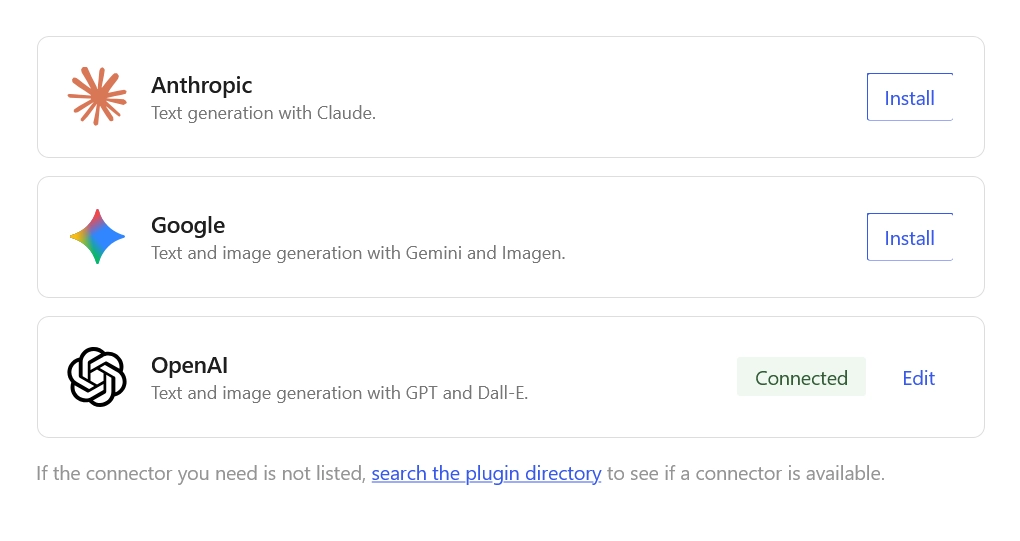
Figure 1: The WordPress 7 Connectors panel, where external AI providers are linked.
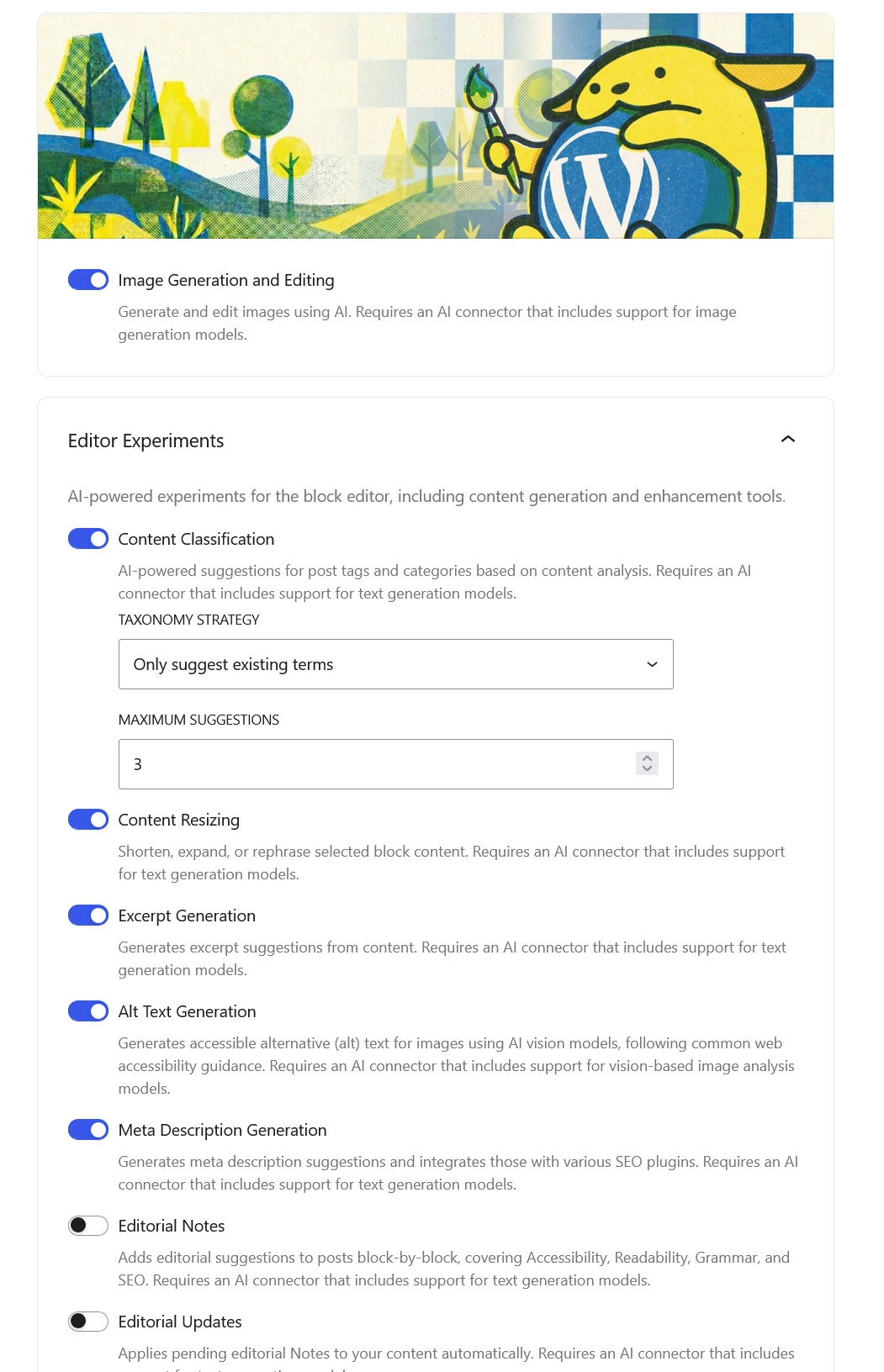
Figure 2: AI settings showing model selection per task type.
Developer note: Verify that your chosen model supports image generation and editing before using these features. Model capabilities will change fast as providers release new API versions.
How does WordPress 7 generate post titles with AI?
Title generation is one of the more immediately practical additions. Open a new post, skip the title field, write your content, and then ask WordPress to suggest one. It reads the full text and proposes something that fits.
Content teams that write first and title later will get the most out of this. The AI has actual content to read rather than guessing from a blank field. Accept the suggestion, regenerate it, or just edit it.
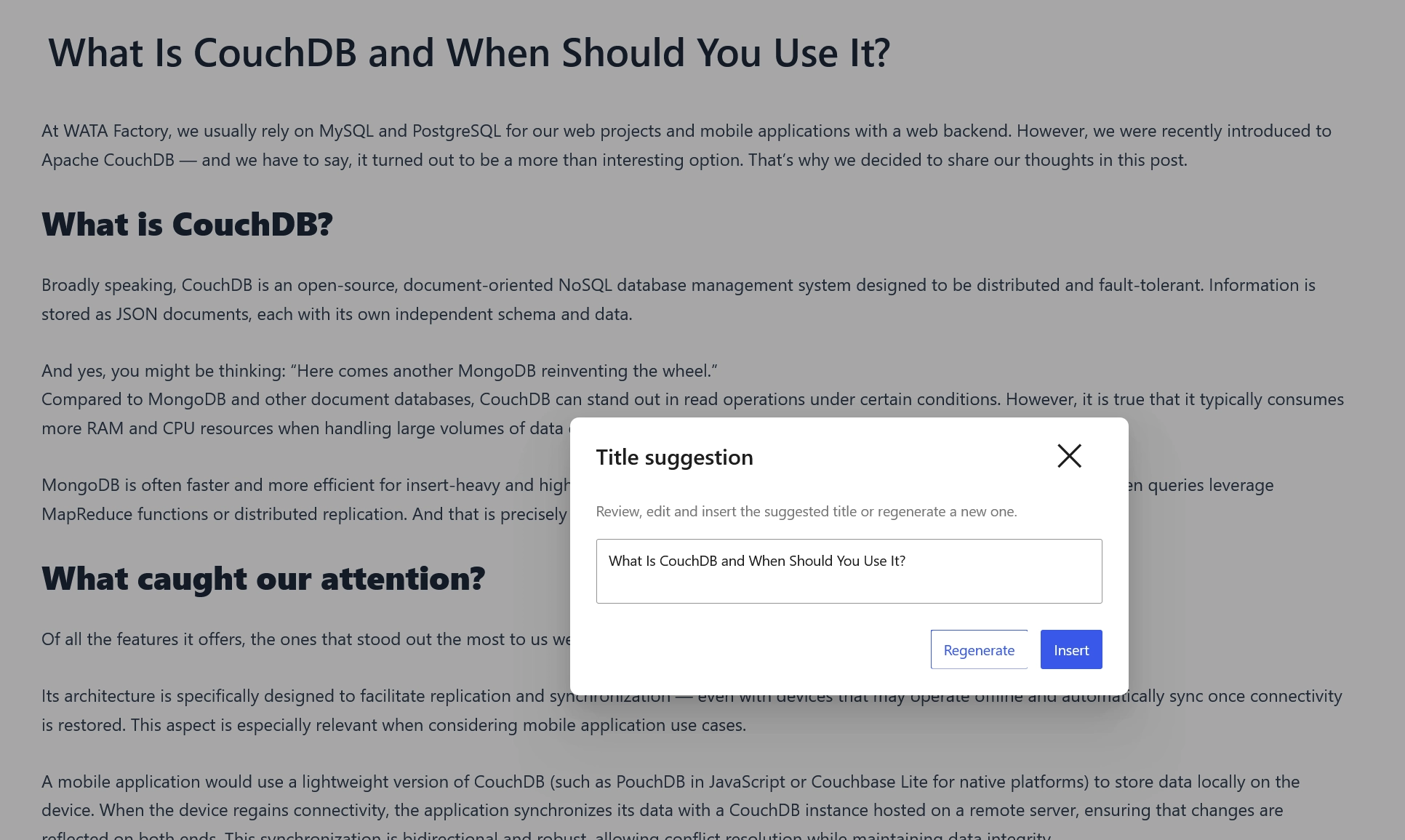
Figure 3: WordPress 7 proposes a title based on the post content.
Can WordPress 7 rephrase and expand existing text?
Select any paragraph in the block editor and two new options appear in the block toolbar: Rephrase and Expand. Rephrase rewrites the selection while keeping the meaning — useful for adjusting tone or clearing out passive voice. Expand adds depth and detail to whatever you selected.
Both work inline and go through the standard editor history. For agencies turning around a lot of content, this trims down the back-and-forth between writers and editors without adding another plugin.
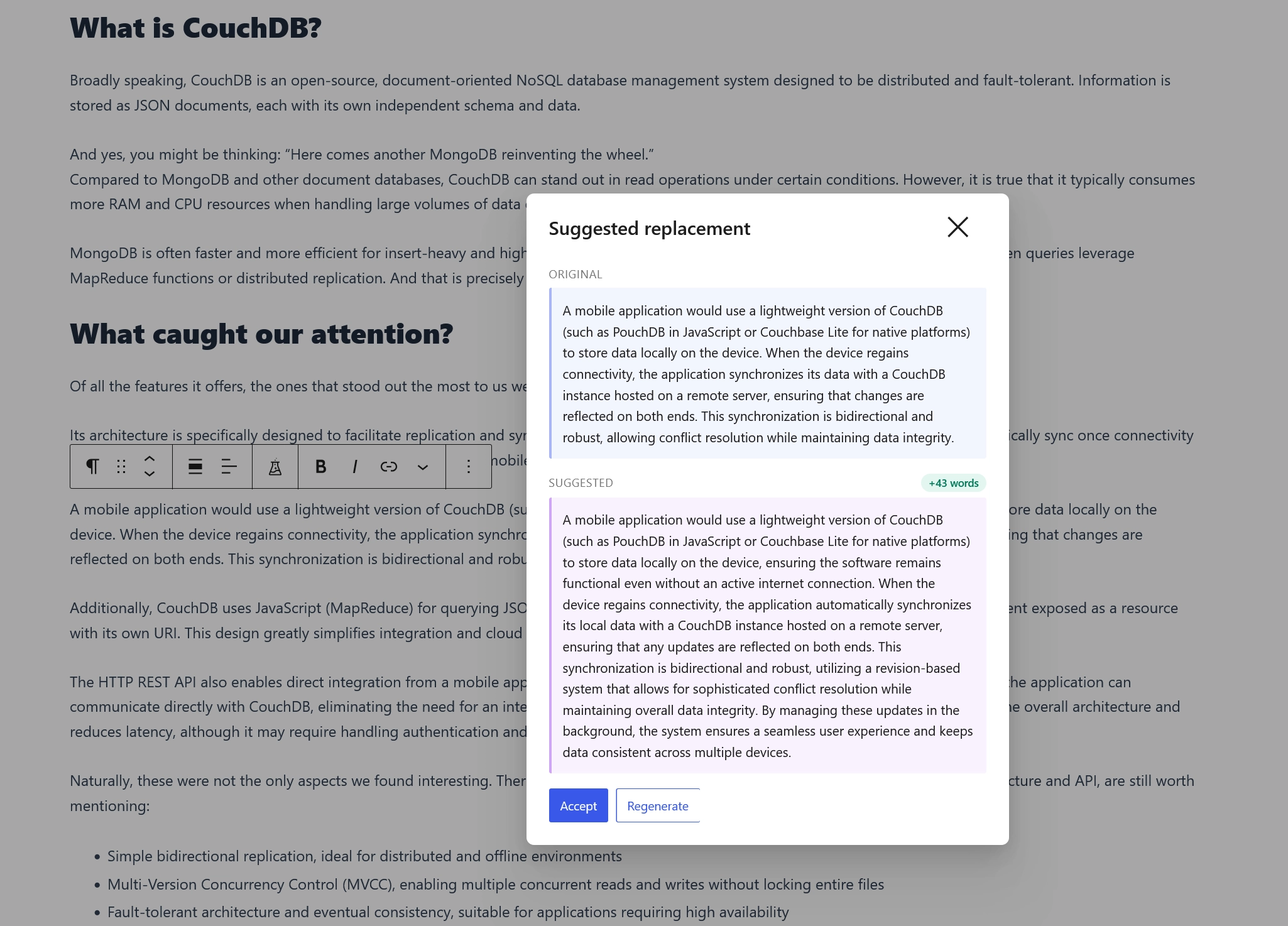
Figure 4: The Expand Content option available when a paragraph block is selected.
Does WordPress 7 generate post excerpts automatically?
The Excerpt field in the sidebar now has an AI generation button. Click it and WordPress reads the post body, then writes a summary suited to archive pages, RSS feeds, and structured data. Regenerate it as many times as you need, or edit it directly.
For theme developers, this matters because clients almost never fill in excerpts manually. Blank excerpts break listing page layouts consistently. This helps.
How does WordPress 7 generate meta descriptions?
WordPress 7 generates meta descriptions natively. This has always been plugin territory — Yoast, Rank Math, that whole category. It is now built in to core.
The generated description targets the 150–160 character range and appears inline for review. Edit a word or two, accept it as is, or regenerate it entirely. For smaller sites that do not run a full SEO plugin stack, this fills a real gap.
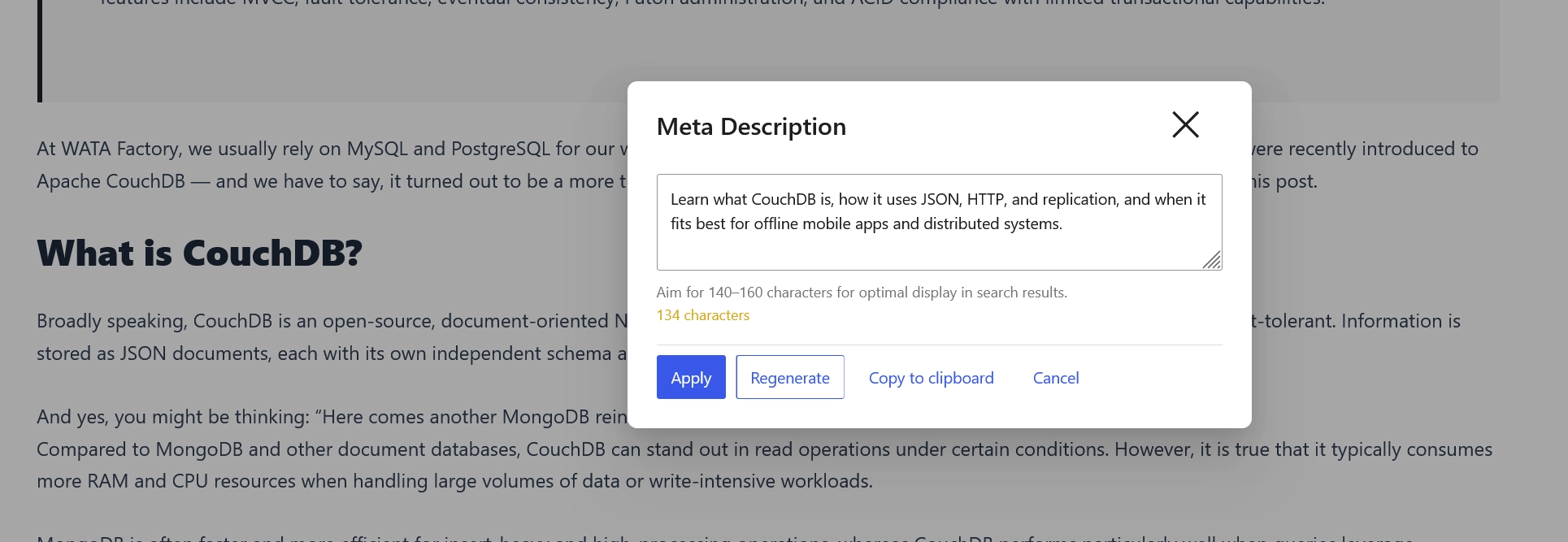
Figure 5: The AI-generated meta description displayed inline for review and editing.
SEO note: Generated descriptions are a starting point. Check them against your target keywords and your client’s tone before publishing.
How does WordPress 7 generate featured images for posts?
From the Featured Image panel in the sidebar, you can generate an image directly from the post. WordPress reads the text, works out a visual concept, and sends a prompt to the connected imaging model.
The generated image comes with its title, alt text, and description fields already filled in. Alt text in particular has been a persistent problem in most WordPress media libraries — having it generated automatically, even if imperfect, is a step forward. Edit any field before saving.
Can you generate images inline while editing a WordPress 7 post?
Image generation is available mid-post as well. When you open the image insertion popup inside the block editor, a Generate Image button appears next to the usual upload and media library options. Describe what you want, and the image is generated in the popup.
You can drop it straight into the post or refine it first. Previously this meant leaving the editor, opening a separate tool, downloading the image, and re-uploading it. This replaces all of that.
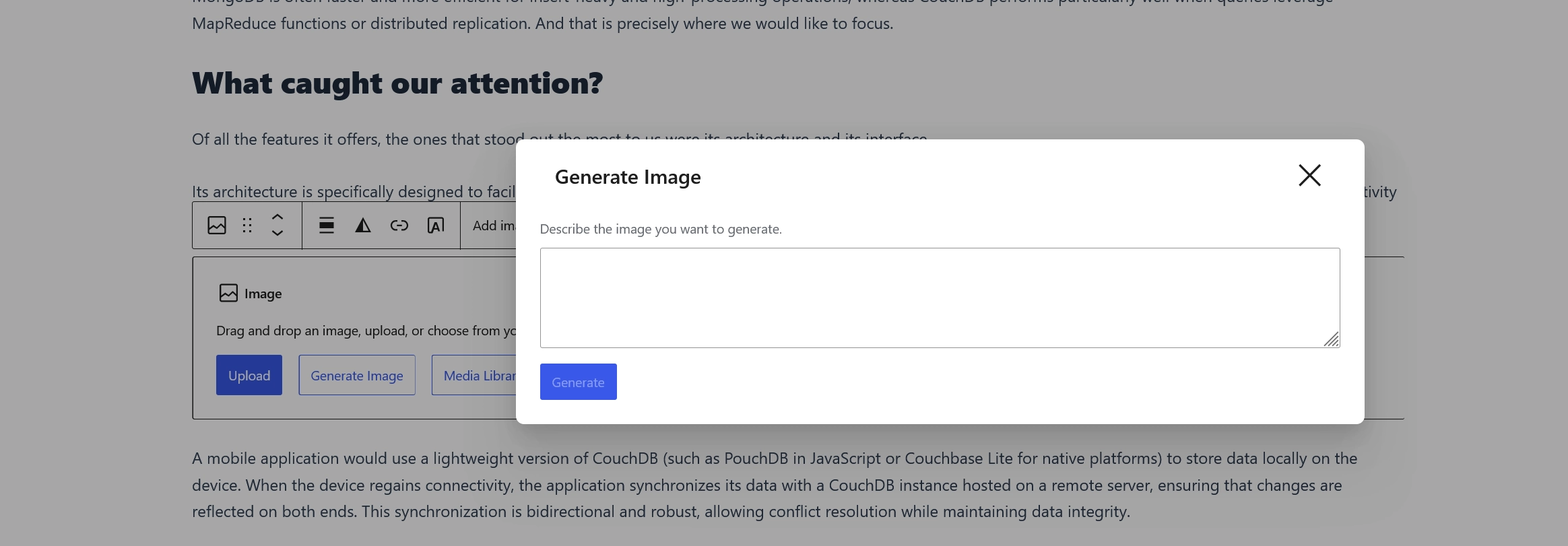
Figure 6: The inline image generation popup inside the WordPress 7 block editor.
What AI image editing tools are available in the WordPress 7 Media Manager?
Every image in the media library now has an AI button for generating alt text. WordPress analyses the image and writes an appropriate alt attribute. For libraries that have been built up over years without consistent alt text, this is genuinely useful.
When editing an individual image, three new options appear. Refine the Image opens a prompt field where you describe the changes you want: different lighting, a different background style, colour adjustments. Remove Background isolates the subject in one click. Remove Items gives you a brush to paint over anything you want gone, and WordPress sends the selection to the imaging model to fill in the gap.
Worth noting: Remove Background and Remove Items require an imaging-capable model. They did not work with ChatGPT in testing.
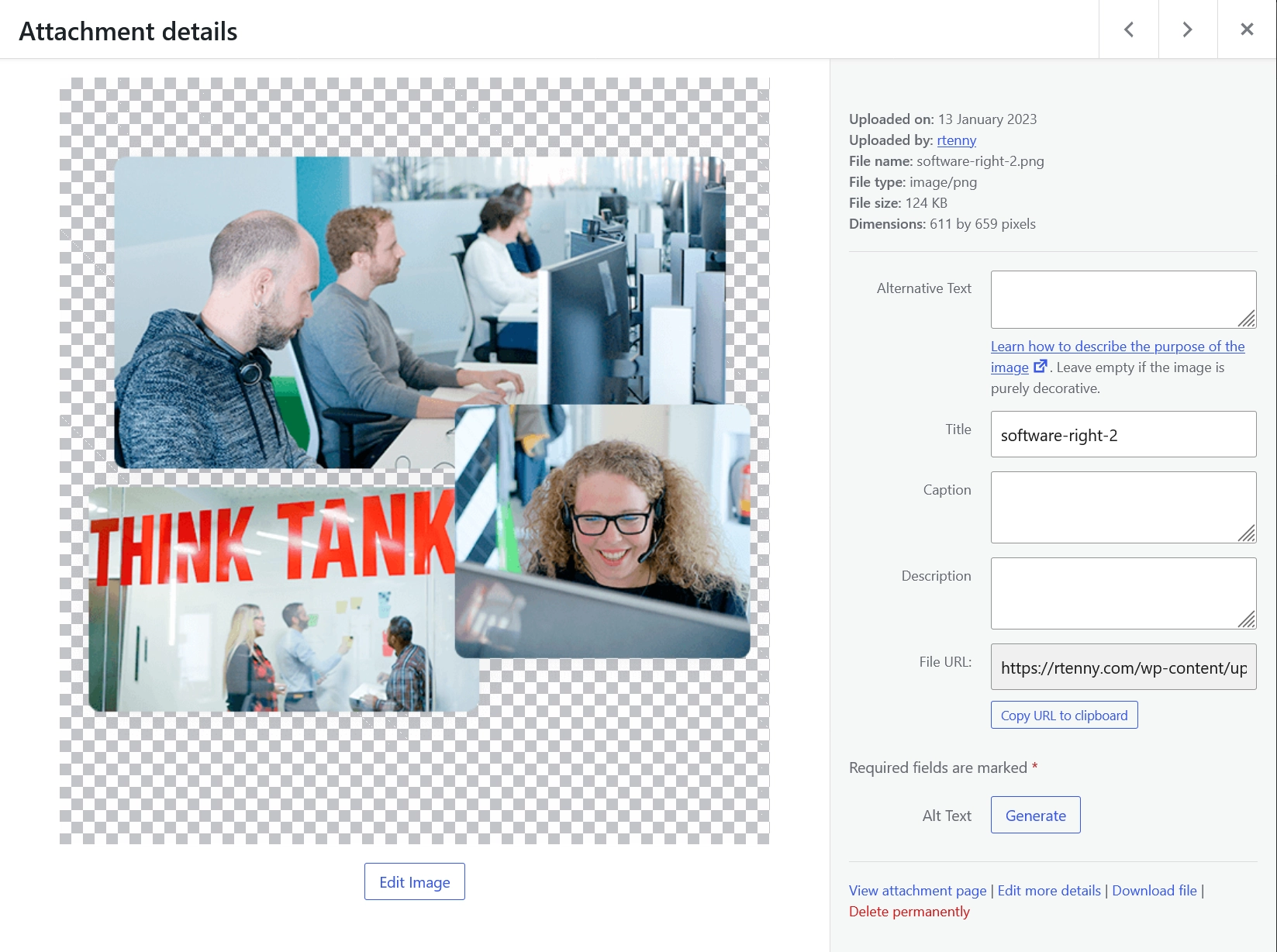
Figure 7: AI alt text generation and image editing options in the WordPress 7 Media Manager.
Compatibility note: Remove Background and Remove Items need a model built for image tasks. Verify your connector before using them.
Does WordPress 7 support standalone AI image generation from the Media menu?
The Media menu in the admin navigation now has a Generate Image option. It opens a simple screen: enter a prompt, review the result, save it to the library. On saving, WordPress fills in the title, alt text, and description automatically, the same as with featured image generation.
The catch: all AI-generated images save as PNG. PNG is uncompressed, so the files are noticeably larger than equivalent JPEG or WebP images. A plugin that converts new uploads to WebP on save is not optional on any production site.
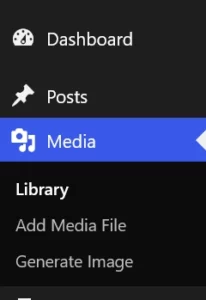
Figure 8: The standalone image generation screen accessible from the Media menu.
How does the WordPress 7 AI content review system work?
After finishing a draft, you can run an AI Review of the full post. WordPress sends the content to the connected model, which checks it for paragraph clarity, missing SEO signals, readability problems, and similar issues.
The results come back as paragraph-level annotations, not a single overall score. Once you activate the review overlay, suggestions appear as you scroll through the post. Click any flagged paragraph and you see the specific note for that block. You decide what to act on. Nothing is applied automatically.

Figure 9: Activating inline AI review highlights — annotations appear per paragraph.
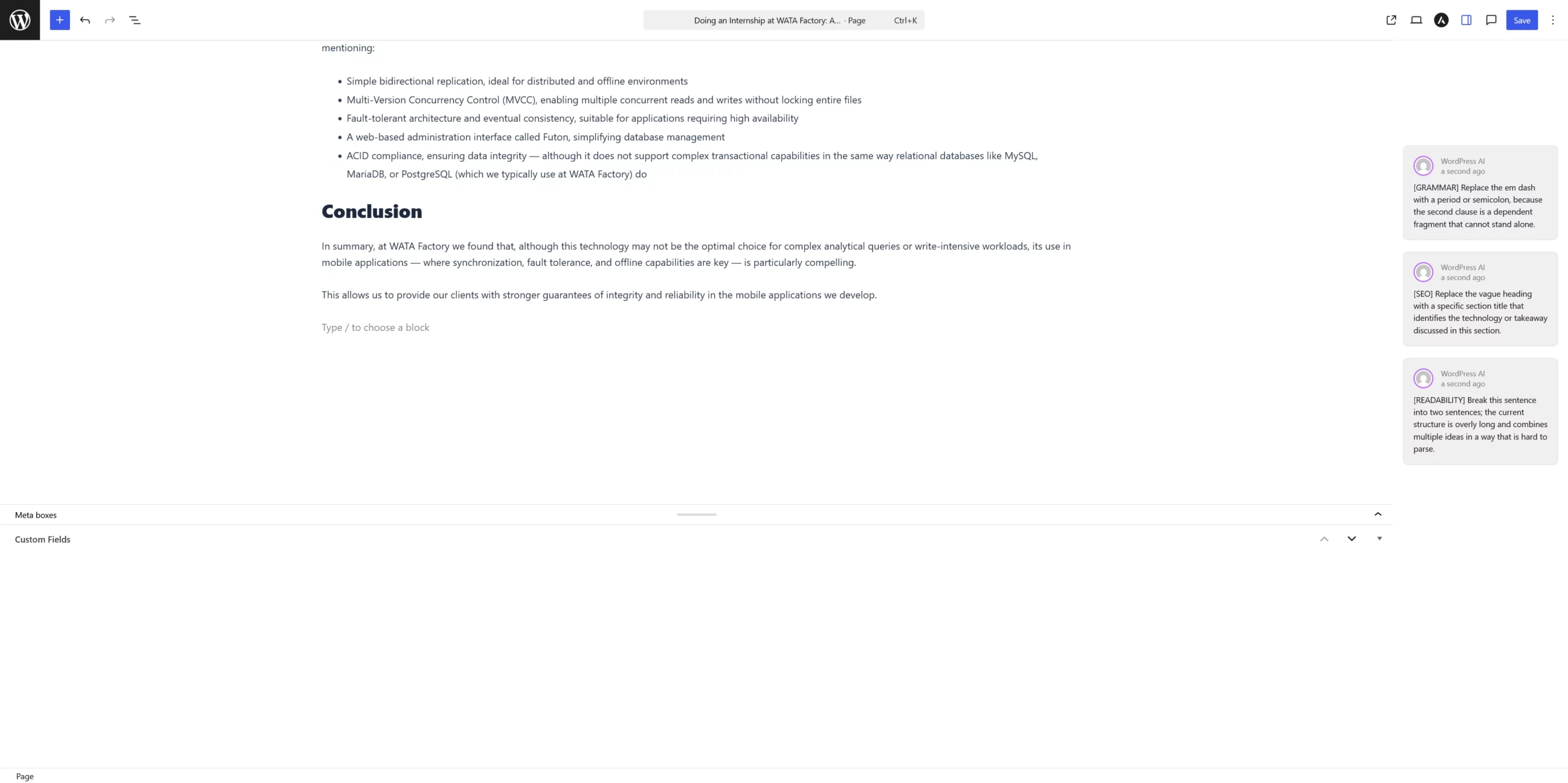
Figure 10: AI review suggestions displayed alongside the paragraph they reference.
Does WordPress 7 automatically generate article summaries?
The Summary Generation feature writes a short overview and places it at the top of the post. It gives readers a quick sense of what the article covers before they start reading.
Like everything else AI-generated in WordPress 7, it is fully editable and can be regenerated. If you are building themes, you need to account for this new block at the top of post templates. On mobile it will be the first thing readers see.
Known limitations and practical considerations for WordPress 7 AI features
A few things worth knowing before you deploy this on client sites.
Every AI feature depends on a live connection to an external provider. There is no on-device or self-hosted option at launch. That means API costs, rate limits, and the provider’s own uptime all affect whether these features work on a given day.
Model compatibility is genuinely uneven right now. Image editing in particular requires a model built for that task, and the combination you configure matters. Verify your chosen provider handles every feature you plan to use before you tell a client it works. This is not the kind of thing you want to discover during a handover.
Generated images save as PNG. That is a performance problem that needs solving before anything goes live. A conversion plugin is a must on production sites.
Content generated by AI needs a human to look at it before it publishes. Titles, excerpts, meta descriptions, and summaries are decent starting points, but they do not know your client’s brand voice, their legal requirements, or the specific keywords they are targeting.
Content submitted through these features is transmitted to whichever provider you connected. Check their data handling terms, especially on client sites dealing with sensitive or confidential information.
Conclusion: is WordPress 7’s AI integration ready for production?
WordPress 7 is a genuinely different platform from previous versions. The AI tools are well placed: inside the editor and the media manager, where the work actually happens, not tucked away in separate admin screens.
For agencies, the practical question is not whether the features are impressive but how much setup they require per client. The connector model is straightforward, but choosing the right provider for each task type takes some thought, and the PNG format issue needs solving before anything goes live.
The external provider dependency is the part that deserves the most scrutiny. API costs accumulate, model behaviour changes between versions, and providers do go down. It is not a deal-breaker, but it is a new variable in production environments that was not there before.
With those factors accounted for, WordPress 7 raises the bar for what a CMS provides by default. For sites with ongoing content production, the time savings are real.